Use the submission form

A form is used to submit documents to Infoscience. This form allows you to describe the publication/resource being deposited, taking into account the specific characteristics of each type of document.
Accessing the submission form
When making a deposit (see Submit a publication), start by selecting the relevant document family (1), then the appropriate document type (2).
You can choose between 3 main document families (see Document types page):
- Publications (articles, conferences, book chapters, etc.);
- Dataset or other product (research data, code, images, videos, etc.);
- Patent.
Tip
Unless you submit a dataset or a patent, select the Publication collection, which includes the most common types of document.
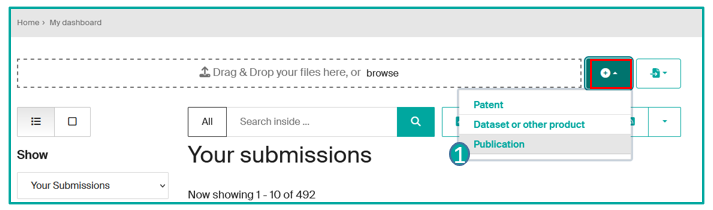

The form appears, with the sections described below.
Importing your file(s)
At the top of the form, a banner allows you to import the file(s) corresponding to the record, or to drag them onto the page (1).
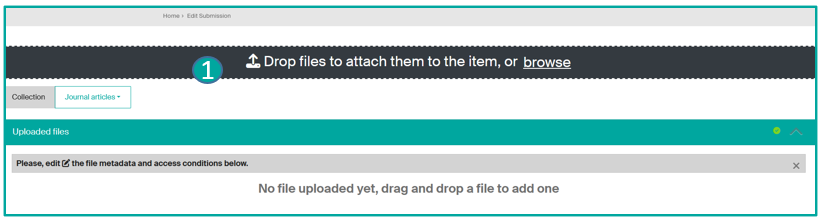
After importing the file(s), you need to complete the metadata and access details by clicking on the Edit icon (2).

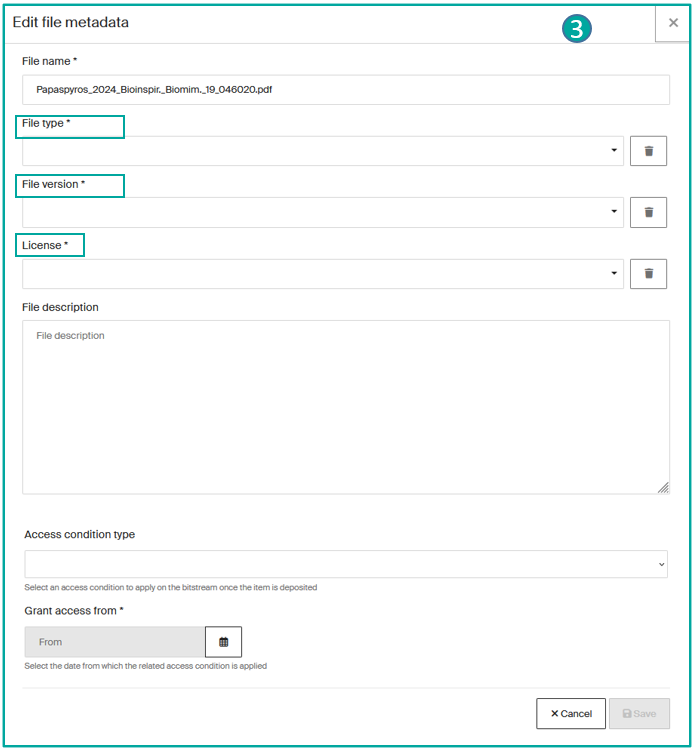
In the file form (3), certain fields are mandatory:
-
File Type: please select the appropriate type:
- Main document: The central file containing the essence of the work or research
- Supplementary material/Information: Additional content that complements the main document, such as appendices or detailed data.
- Presentation: Slide show or other visual support used to present the results or content of the document.
- Video recording: Video file capturing a presentation, conference or demonstration related to the project.
- Audio recording: Sound file of a presentation, interview or discussion related to the work.
- Poster: Visual document designed to present a graphic synthesis of the project or research.
- Figures: Graphs, diagrams, tables or images used in the document to illustrate key points.
- Source code: Scripts or programs used in research or to generate results.
- Thumbnail: Small image or graphic preview used to cover or preview the document content. This file type cannot be downloaded ("Download" option). If you wish it to be, you must save it as "Material/Additional information" and make sure you import it first, before importing the other files.
- Other: Any other type of file not corresponding to the categories defined above.
-
File Version (Preprint, accepted version, final published version…)
- License (CC-BY, CC-BY-NC, Copyright…)*
Finally, it is important to specify the terms of access:
- Open Access
- Access restricted to EPFL members only
- Embargo (if embargoed, please enter the date from which access will be authorised)
Note
When depositing via DOI, the Unpaywall Tool (4) imports the associated full-text, if it is in Open Access. If the full-text is available, click on the Import from Unpaywall button.
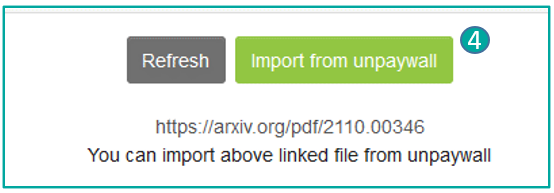
Please note: Unpaywall does not import file metadata or access conditions. These must be specified manually.
*File licenses
When submitting a file, it is mandatory to add the license of the file added.
EPFL Library advises to use CC licenses, whenever possible, for all publications (articles, books, and book chapters), images, master and PhD theses, etc.
In the file form, the submitter must choose one of the following licences:
| License | Description |
|---|---|
| N/A (Copyrighted) | All rights reserved |
| CC BY | Distribute, remix, tweak, and build upon your work, even commercially. Credit must be given. |
| CC BY-SA | Remix, tweak, and build upon your work even for commercial purposes. Credit must be given, and the same licence applies to the new creation. |
| CC BY-ND | Reuse the work for any purpose. Sharing is not allowed for altered versions. Credit must be given. |
| CC BY-NC | Remix, tweak, and build upon your work for non-commercial purposes. Credit must be given. |
| CC BY-NC-SA | Remix, tweak, and build upon your work non-commercially. Credit must be given and the same license applies to the new creation. |
| CC BY-NC-ND | Only download your work and share them with others. Credit must be given. |
| CC0 | No Rights Reserved. |
| Public Domain Mark | |
| Others | You must add manually the license. |
To know more about the file licenses, please refer to the EPFL Library Publishing Support Fastguides.
Your files: formats, naming, authorised versions
Here are some rules for file naming and integration on Infoscience to harmonize best practices:
- Formats: upload files in PDF, JPG for images, MP3/MP4 for videos or ZIP when there are several files. Avoid doc/docx/odt formats.
- Names: keep the name short (max. 32 characters); avoid special characters (# @ & € + …); avoid spaces between words, instead use the underscore
_to separate terms.
Versions of the publication:
- Preprint or submitted version: The version submitted before peer-reviewing, not yet accepted.
- Postprint or accepted version: The version accepted after peer-reviewing, before the publisher's formatting.
- Published version: The final version accepted by a journal, peer-reviewed, corrected by the author, and formatted by the journal's editor for publication.
Tip
If the publisher's policy allows, deposit the published version, with any imposed embargo. It is always permissible to deposit preprint and postprint versions.
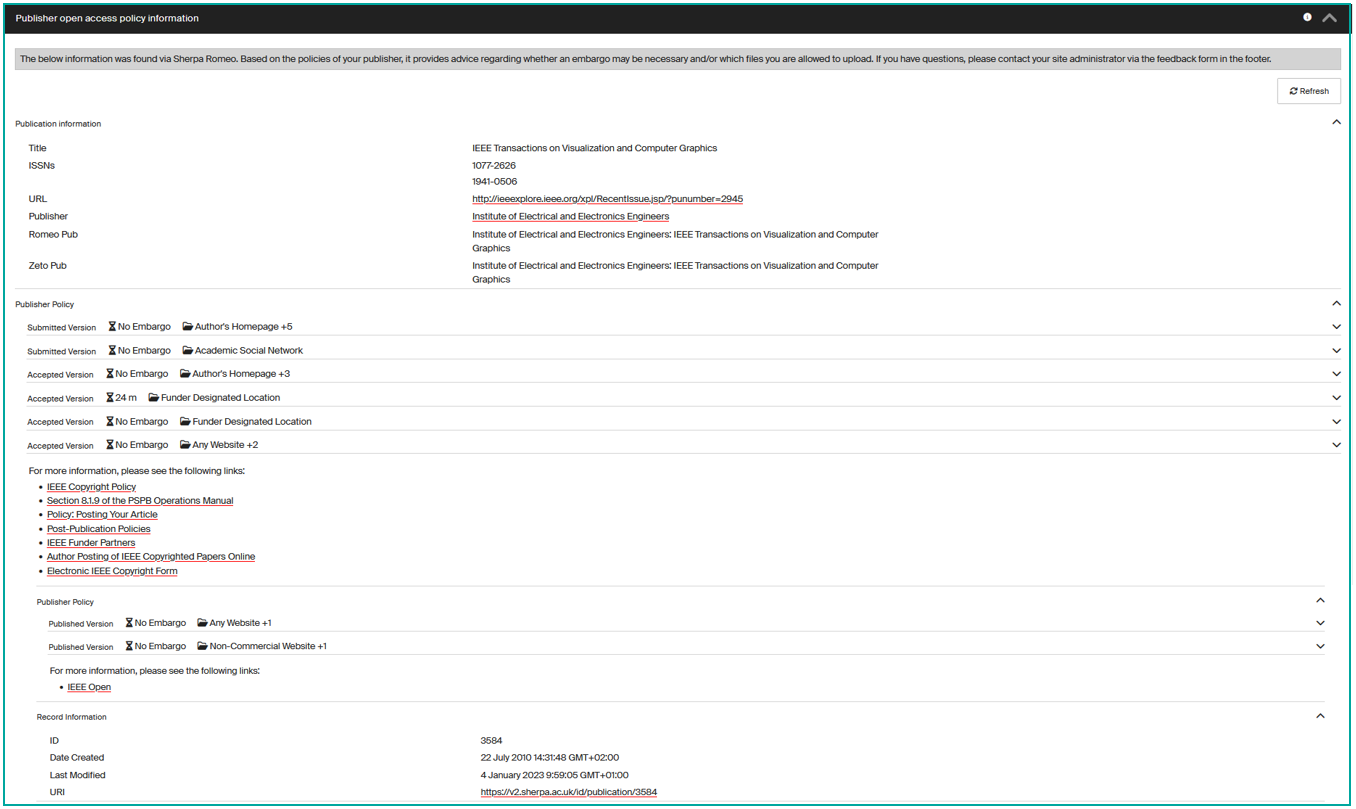
The Open Policy Finder "Publisher open access policy information" section helps you choose the appropriate license for each file.
For more information, please consult the File naming and formats best practices page.
Collection and Document type section (mandatory)
Once the collection is chosen, a box opens up — choose the desired doctype. See the full information page.
The submission form opens up, you can:
- Modify the collection (1).
- Choose the document type (2) for your deposit*.
- The list of document types varies depending on the chosen collection.
When you open the list of sub-document types, a hierarchy opens up (3) => choose/search for the desired sub-type.
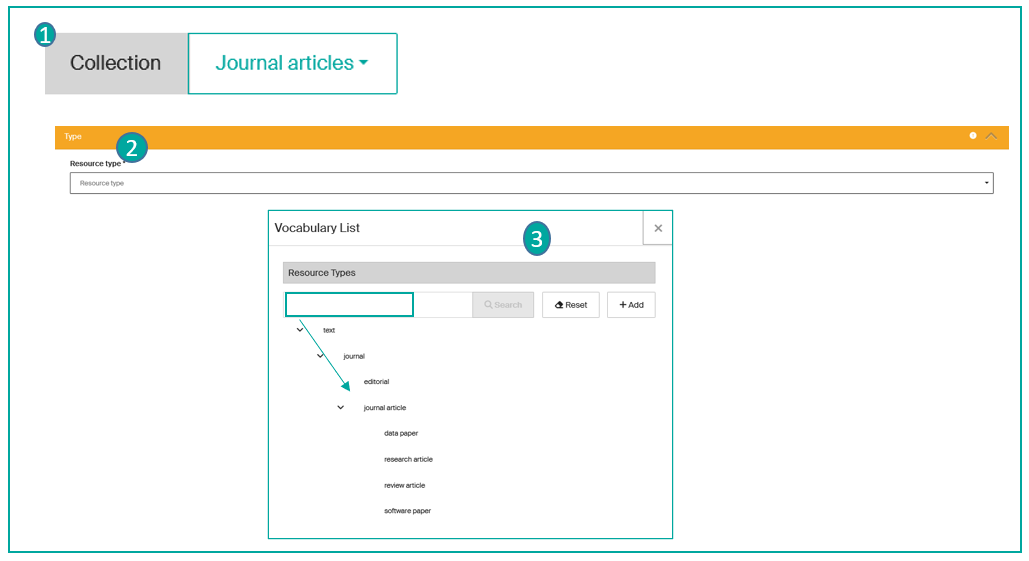
*Fields marked with an asterisk are mandatory.
Identifiers section
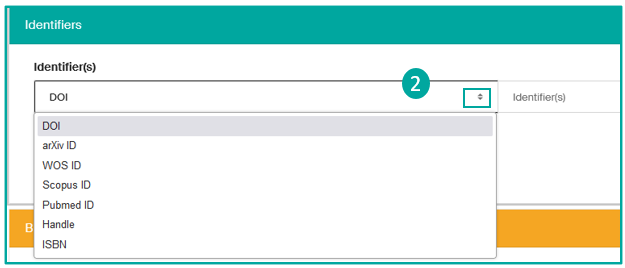
In this section, you can insert the identifier of your publication (unique identifier such as DOI, Handle or ISBN, or a number assigned by external databases such as arXiv, WOS or Scopus), which will automatically pre-fill the form.
- (1) The DOI field is proposed by default, insert it in the "Identifiers" box. Infoscience retrieves metadata associated with the DOI from the Crossref database to pre-fill the form (for example: authors, title, abstract, date, publisher metadata, and potentially the full text if it is available in Open Access via Unpaywall import.

- (2) Add any other available identifiers, for example from ArXiv, WoS, Scopus, Pubmed, or a Handle, or even the ISBN (book). As with the DOI, automatic retrieval from certain sources is possible (WoS ID, Scopus ID, Pubmed ID and arXiv ID).
Main Information section
In this section (1), you can add:
- Authors*: for each added author, a pop-up opens up to add:
- the author (type the last name first. If the author is not proposed in the list, you can create him/her by adding Surname, First name in full, inserting a comma and a space between the Surname and the First name).
- the institution (EPFL or other).
- the main affiliation: Laboratory or Unit (if you wish to change the affiliation that has been pre-filled, enter the acronym of the laboratory, then select the desired affiliation from the list).
- the author's ORCID.
- Corresponding author: click on Yes if this author has been designated as the publisher's point of contact.
Warning
It is imperative to mention ALL the authors of the publication, in the exact order in which they appear (these details are necessary for the document to be cited correctly). The affiliation corresponds to the research institution to which the author is attached at the time of production of the resource/document.
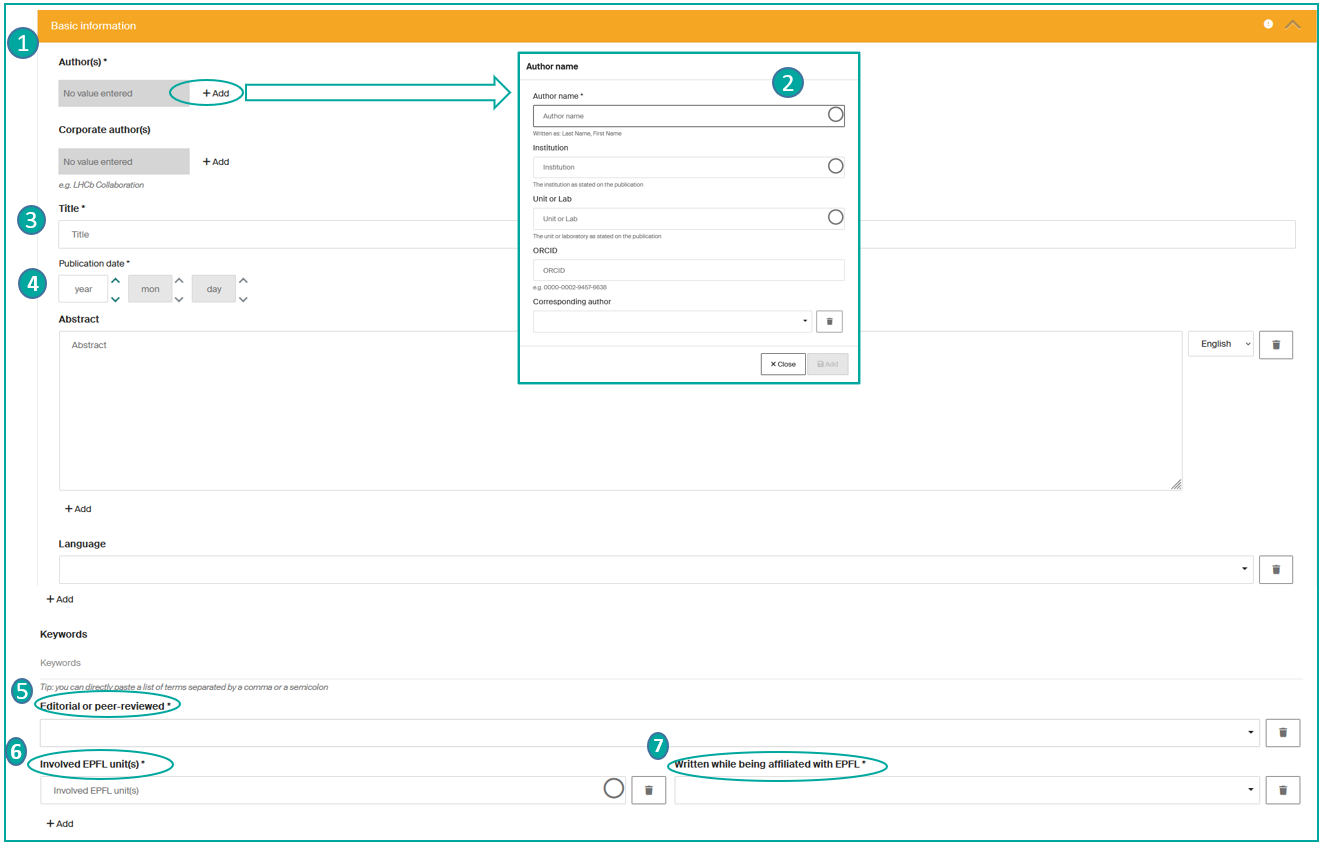
- Corporate author(s): mention a group of authors, for example: LHCb Collaboration
- Title* (3): insert the exact title of the publication (note that Mathjax formats are supported)
- Publication Date* (4): the year is mandatory, month and day are recommended.
- Abstract: add the abstract in the desired language.
- Language: add the language of the publication if you wish.
- Keywords: add keywords separated by commas or semicolons.
- Peer-reviewed*: select Yes or No
- Affiliated Units*: add the affiliation(s) of the publication
- Written while affiliated with EPFL*: select Yes or No
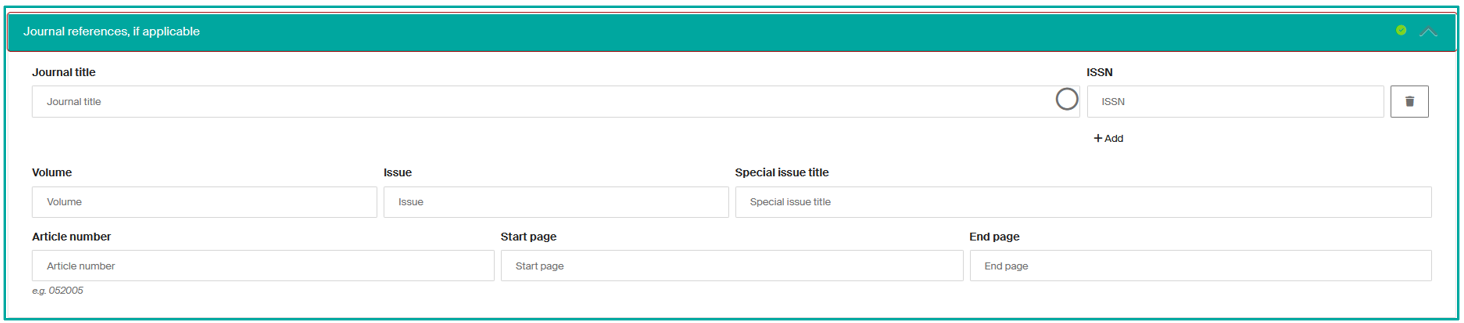
Details or "Journal References" section
- Journal Title: enter the journal title, starting with the first few letters of the journal name. The form will suggest a number of journal titles. Select the desired title.
- ISSN: enter if not automatically detected.
- Journal Volume: enter if not automatically detected.
- Journal Issue Number: enter if not automatically detected.
- Specific Title for this Issue: enter if not automatically detected.
- Article Number: enter if not automatically detected.
- Starting Page: enter if not automatically detected.
- Ending Page: enter if not automatically detected.
Note
Completion of these sections is not mandatory, but strongly recommended to ensure the publication is effectively promoted.
Publisher Open Access Policy Information section
The Infoscience platform provides information on Open Access policies for journals and publishers/ISSNs. The information comes from Open Policy Finder and can be used to find out: which version of your publication you are authorised to submit, and whether a dissemination restriction (embargo) must be applied.
If in doubt, you can submit the full text as open access: before disseminating your record, the Infoscience team will check the licence and its suitability for this type of access.
Other Information section
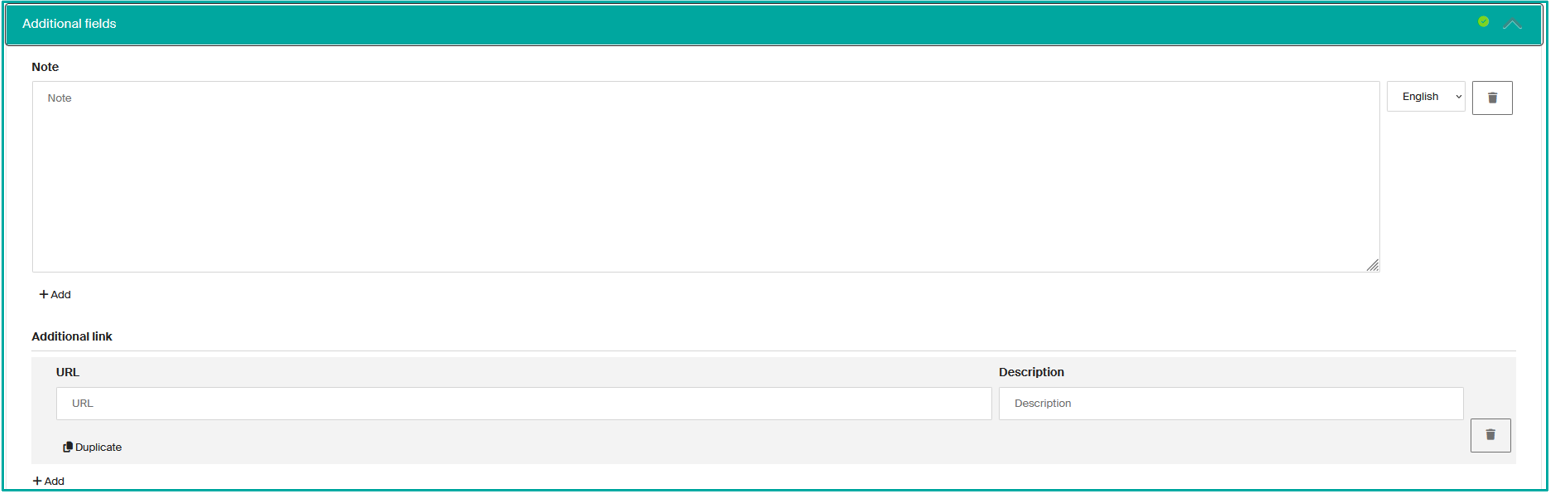
- Note: add a note or description if necessary. Specify the language if you wish.
- Additional Link: add one or more links related to your publication if available, for example to the publisher's website.
Funding section
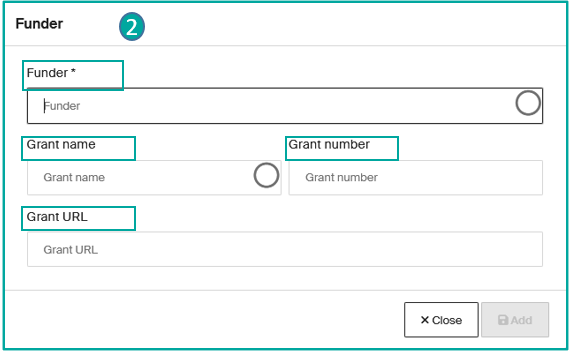
You can add the name, number, and URL of the funder(s) here (1):

When you add a funder, a window opens (2): complete the field(s). Input help is available for funders (data from RoR) and grant names (data from OpenAIRE).
Related works section
In this section, you can link your publication to other publications, for example between a publication and a dataset.

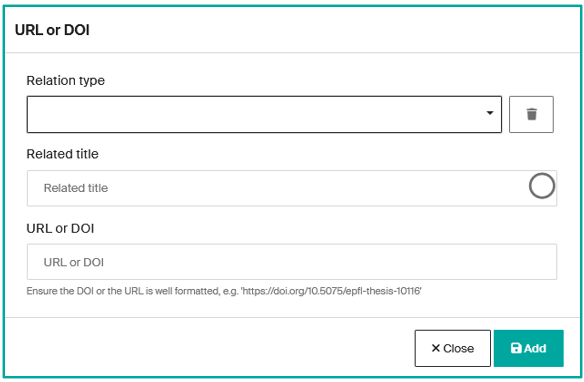
- Click on Add and choose the appropriate relationship from the drop-down list.
- Insert the title of the publication. Note that if the target publication is in Infoscience, the system will pre-fill the rest of the title, as well as the URL or DOI.
- If not, enter the URL or DOI manually.
Note
You can add as many relationships as necessary.
Potential Duplicate(s) section
If Infoscience detects a potential duplicate with a publication already present on the platform, it will indicate it here.
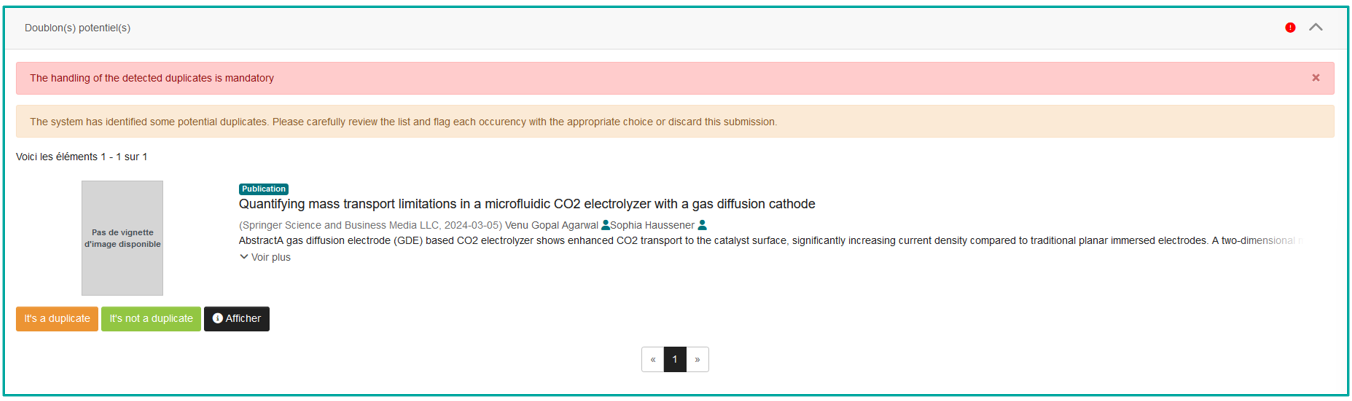
It is up to you to analyse whether it is indeed a duplicate => to find out more about handling duplicates, please see the Submit a publication page.
Submission Agreement section
The submitter is obliged to accept the licence in order to finalise its application.
Special considerations for books and book chapters
When submitting a book or a book chapter, choose the collection "Books and Book Parts".
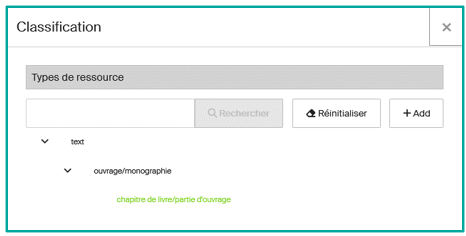
In comparison with Journal Articles, new fields are added in the "Book Reference, if applicable" section:
- Book Title*
- Scientific Editor(s)
- Publisher*
- Place of Publication
- Edition
- Number of Pages
- Part Title
- Part Number
- ISBN (of the book)
- DOI (of the book)
- Series Title/Series Number
- ISSN (of the series)
- Editorial reviewed (YES, when the book is validated by a publisher or scientific committee, NO when the book is self-published)
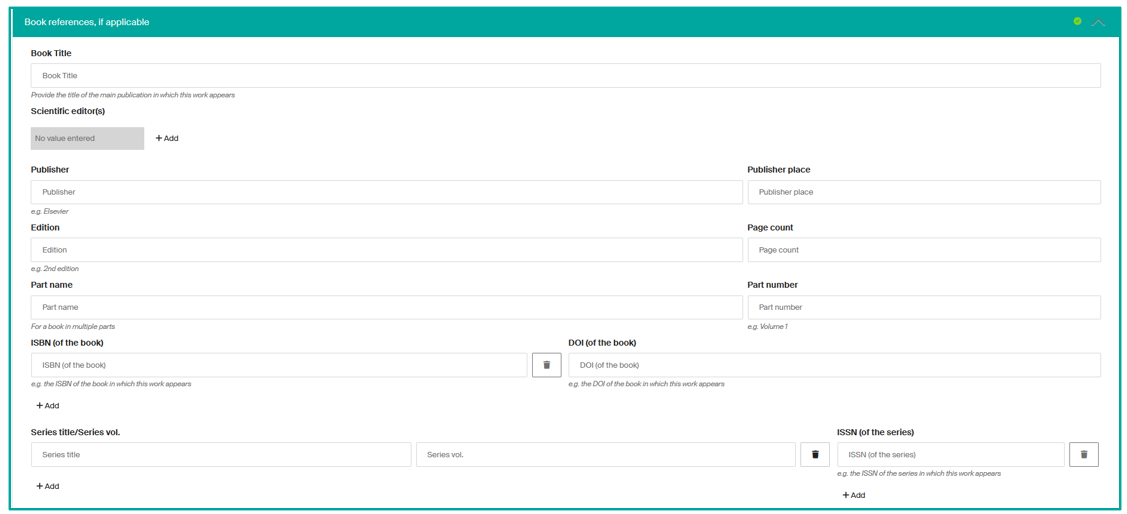
*Sections with an asterisk are mandatory.
Special considerations for Conferences and Conference Papers
To submit a Conference or a Conference Paper, select the collection "Publications > Conferences, Workshops, Symposiums, and Seminars".
Select the appropriate doctype (1) (please refer to the page on Collection & DocType).
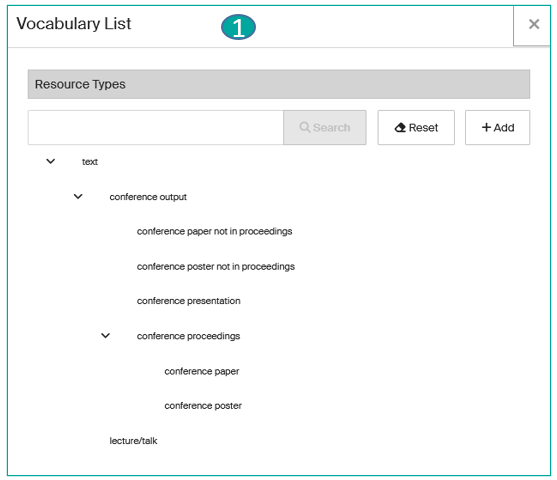
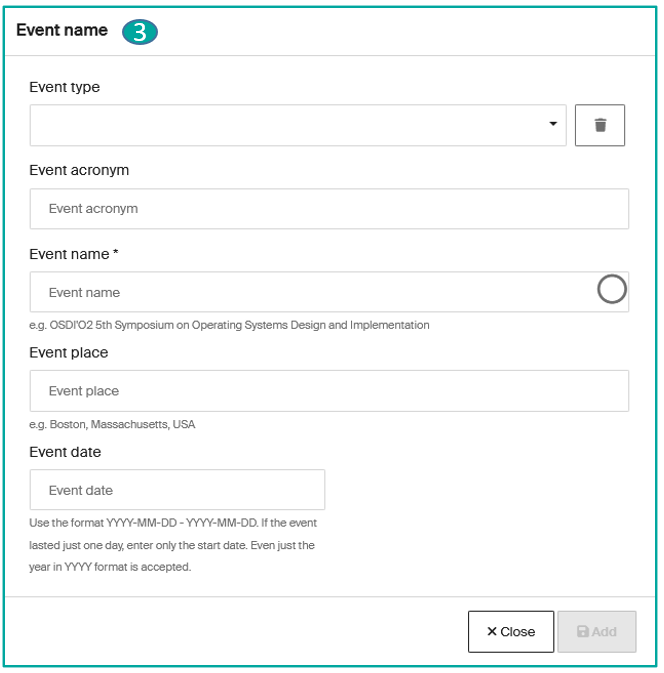
An additional section is added at the bottom of the form: "Related Event, if applicable" (2).

Click on Add and fill in the sections (3):
- Type of event (Conference; Workshop; Seminar or Study Day; Exhibition; Course; Other)
- Event name
- Event location
- Date
Fill in the other fields on the form, depending on the information available.
Special considerations for Datasets
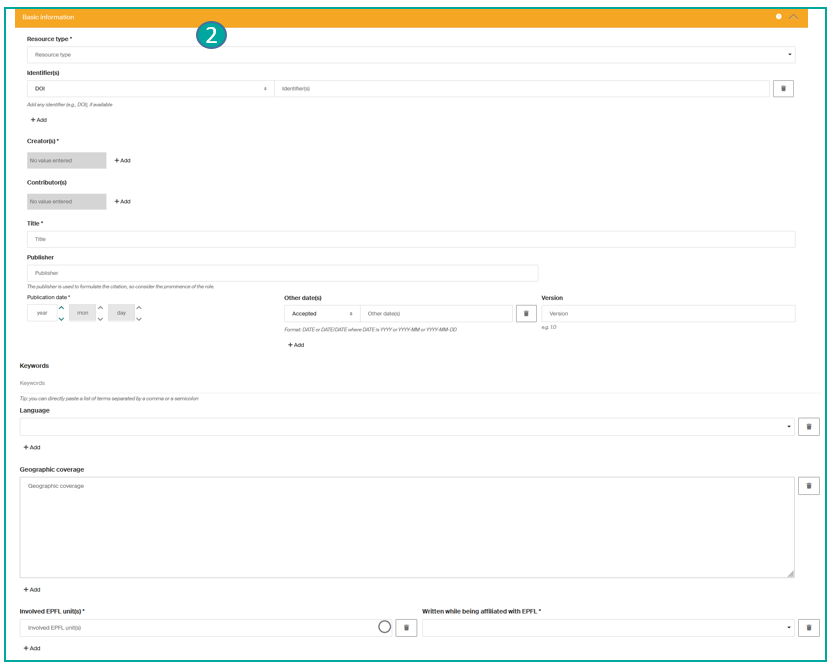
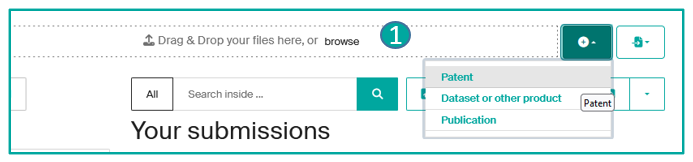
To submit a dataset, select the "Dataset or other product" Collection (1), then fill in the submission form.

Basic Information section (2):
- Type*: choose the appropriate dataset subtype in the hierarchical tree (to find out more about subtypes and their definitions, consult the Help page)
- Identifiers
- Creator(s)*
- Contributor(s)
- Title*
- Publisher (the field is pre-filled with "EPFL")
- Publication Date*
- Other date(s)
- Version
- Keywords
- Geographic coverage
- Involved EPFL unit(s)
- Written while being affiliated with EPFL*
Item access conditions section (3) — set for each file unless differently specified:
- Access condition type (open access, embargo, restricted access)
- Grant access from*
Common files attributes section (4):
- Files global license*

If you are uploading several files with the same level of access and licence, it is best to download them once, using a zip file.
Note
Don't forget to link your Dataset to the corresponding publication if available, in Infoscience or on an external database (see Submit a publication — Relationship section).
*Fields with an asterisk are mandatory.
Special considerations for Patents
To submit a patent, select the Patent Collection (1), and fill in the submission form.
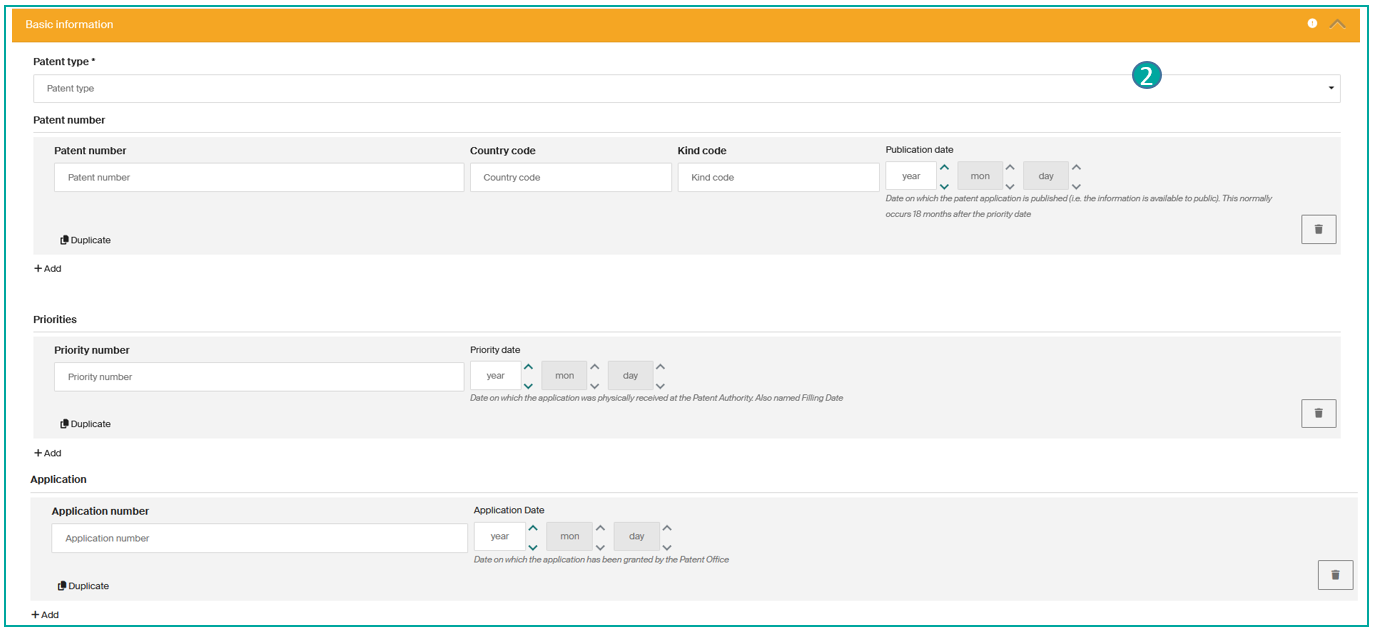
"Basic Information" section (2):
- Type*: choose the appropriate patent subtype from the hierarchical tree (to find out more about subtypes and their definitions, see the Help page)
- Patent Number and Publication Date
- Priorities and Priority Date
- Application => Application number and Application Date
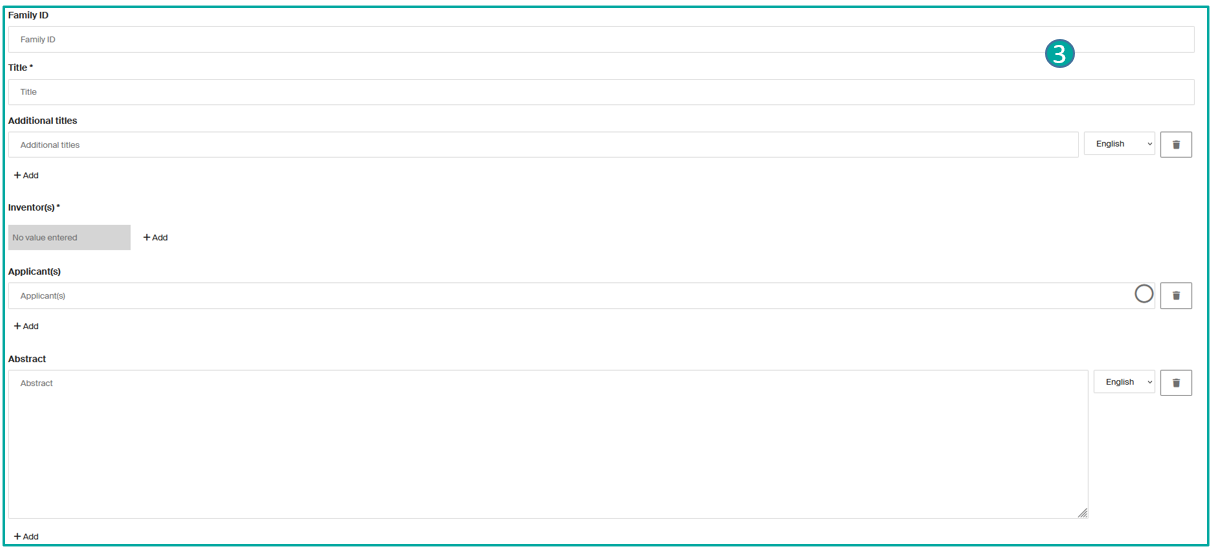
(3)
- Family ID
- Title*
- Additional titles
- Inventor(s)*
- Applicant(s)
- Abstract
(4)
- TTO Classification
- Keywords
- Involved EPFL units*
- Written while being affiliated with EPFL*

*Fields with an asterisk are mandatory.