Manage my publications
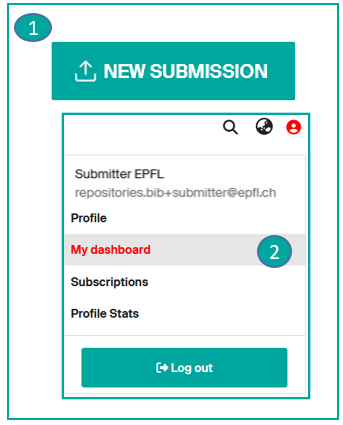
Add a new publication
You can submit a new publication: via the homepage (1) (when logged in) or from the dashboard (2) of your Infoscience account => see page Submit a publication.
View and manage my submissions
In the menu accessible via your profile icon, click on "dashboard". This will take you to the list of your submissions. The View filter shows Your Submissions (by default).
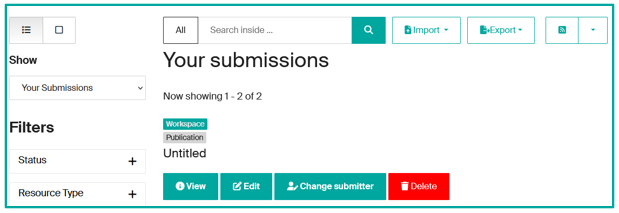
Menu Your submissions
You can display the list of submissions you have made according to the status* of the records:
- Workspace (1): the record is saved in your dashboard, but not yet submitted. You can view it, edit it, modify the submitter, or even delete it.
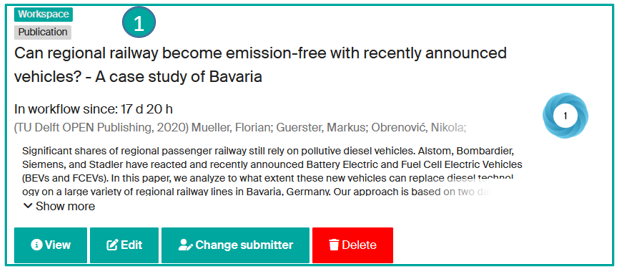
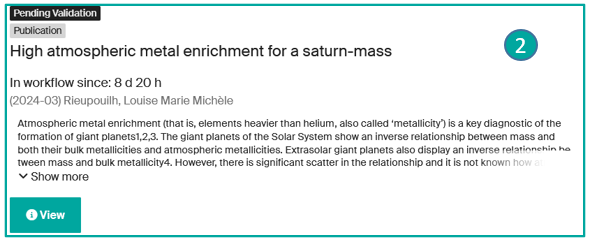
- Pending validation (2): the record is being checked by the Infoscience team. Only the View option is available.
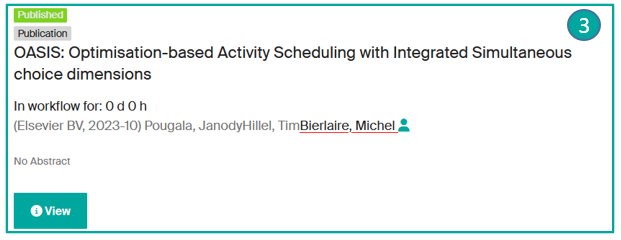
- Published (3): the record has been accepted by the Infoscience team, it is published and searchable in Infoscience. Only the View option is available.
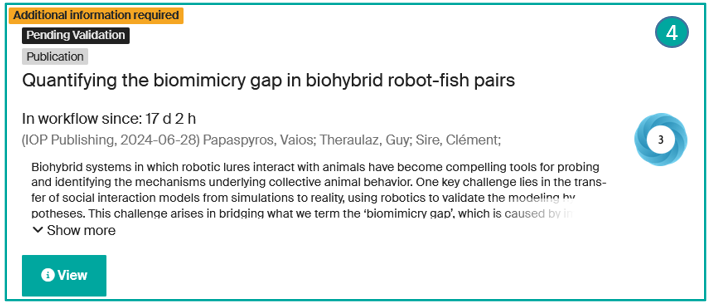
- Additional Information required (4): the record has been processed by the Infoscience team, but sent back for further information. Only the View option is available. Please reply to the e-mail with the information requested, which will automatically create a ticket. The Infoscience team will update the record.
- Rejected (5): the record has been rejected by the Infoscience team. You have received a notification email with the reason for this rejection. You can view the record, edit it, change submitter or remove it.
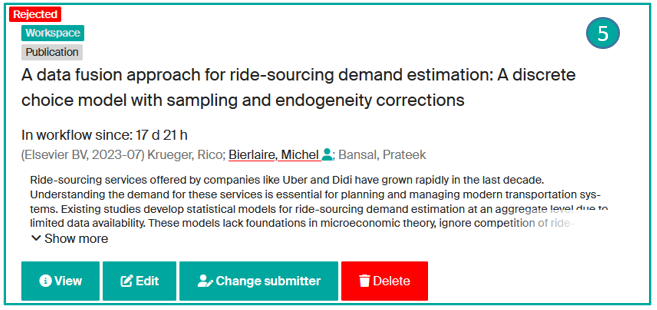
Available actions depending on status:
| Action | Description |
|---|---|
| *View | Display the record metadata. |
| *Edit | Modify the metadata and/or add file(s). |
| *Change submitter | Assign the responsibility of the submission to another EPFL member. It will be transferred to the new submitter's dashboard. |
| *Delete | Permanently remove the record. |
Update a published record (new version, correction, removal)
Transfer the responsibility for a submission
As a submitter, you can reassign your draft records to another person (co-author, colleague…).
- Go to "My dashboard" to display your submissions.
- Only records with the status "Draft" have the option "Change submitter" (1).
- Search for a colleague (via metadata or exact email address) and click on Select (2).
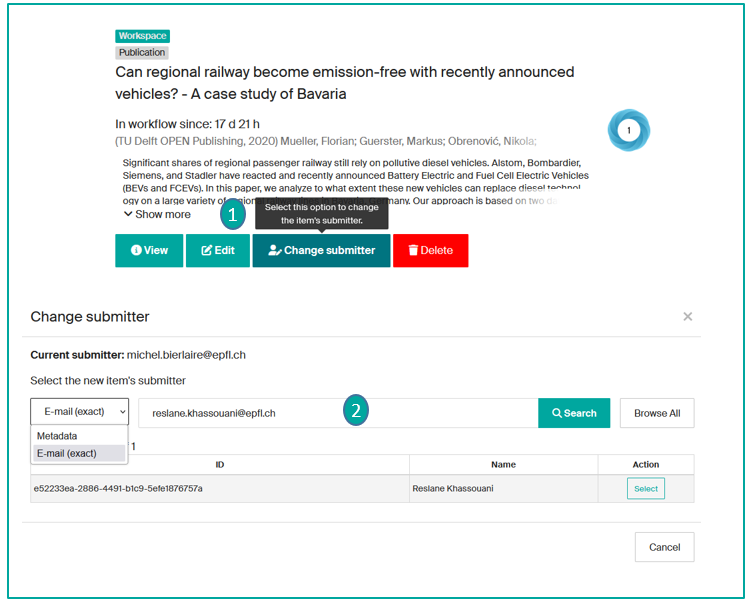
The 'draft' item will be transferred to the new submitter's dashboard. Once authenticated, he/she will be able to manage or edit the record.
Accept or reject suggestions for imported publications
Publications from external sources will sometimes be suggested to you: after verifying whether you are the author or not, you can accept or reject them.
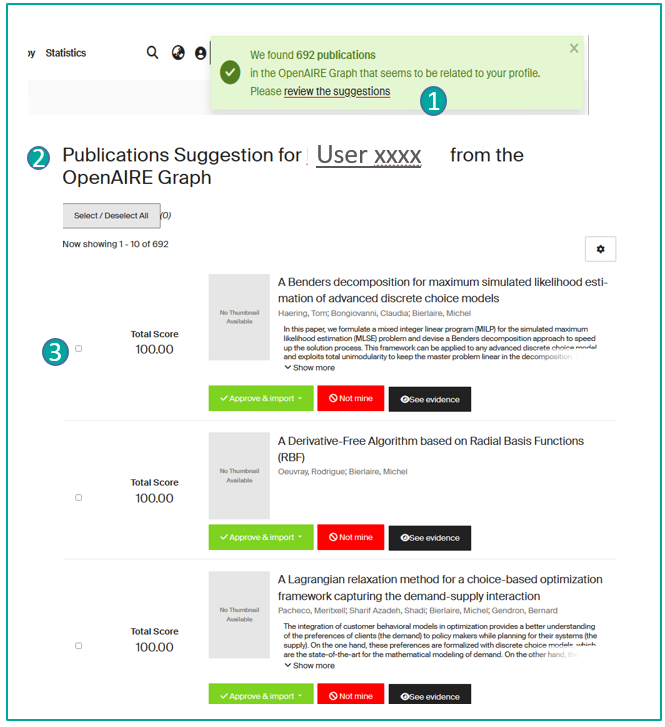
When you authenticate on Infoscience, a pop-up (1) offers publication suggestions.
By clicking on the "review the suggestions" link, you access the list of suggestions to be processed (2):
- "Approve & Import": you accept the publication for which you are the author and choose the corresponding document type. This will add the publication to your Dashboard: you can edit it, complete the metadata, add file(s), and then save the submission.
- "Not mine": you reject the publication for which you are not the author.
- "See evidence": you are informed of the reasons for this suggestion.
Tip
You can select several suggestions by ticking the boxes on the left (3), and approve/reject several publications in a single action.